Registration is Open for Corel Painter Classes at Digital Art Academy

Hello Everybody,

Registration is open for the first session of 2012 at Digital Art Academy (DAA).  The first session begins on January 28 and ends on Feb 24.  DAA focuses on Corel Painter, specifically Painter 12, although we still have a few self-study courses for Painter 11 active. 

Start your New Year off right and join us and explore the wonderful world of Corel Painter. You will find out all you need to know about each class by visiting DAA, but I will give you an idea of the offerings in the first session.

Core Courses

An Image Created in Painter 12 by Elaina Moore-Kelly

If you are brand new to Painter 12 or are an experienced user that would like a refresher course, then Elaina Moore-Kelly has the classes for you.  Elaina teaches Introduction to Painter 12 – Part 1 and Introduction to Painter 12 – Part 2.  Elaina’s class is very detailed and covers all the important parts of Corel Painter 12.  Elaina uses PDFs for her lessons with a video or two mixed in.  I have worked with Elaina beta testing Corel Painter 11 and 12, but she started beta testing Corel Painter with version 7, I believe.  Elaina knows Painter 12 as well as the developers I will venture to say.  If you want detailed knowledge of Painter 12, take these classes.

Image from Week 4 Painter 12 A New Beginning

If you have a good working knowledge of Painter 11 or X and you want to know what is new in Painter 12, then my Painter 12 A New Beginning is the course for you.  I designed this course for a current Corel Painter user who is new to Painter 12.  There is a lot of new stuff in Painter 12; this course covers it all.  Discover all the mysteries of Corel Painter 12 in four short weeks.

So, you haven’t upgraded to Corel Painter 12 and want to discover all about Corel Painter 11.  Or maybe you are an experienced user of Corel Painter 11 and want a refresher course.  My three Corel Painter 11 Courses, Introduction to Corel Painter 11 the Basics, Introduction to Corel Painter 11 Beyond the Basics, and Corel Painter 11 Selections, Channels and Masks are available for self-study.

Painter Professional Courses

There is a new instructor at DAA.  If you are a fan of digital watercolor in Corel Painter, then I bet Joan Hamilton is no stranger to you.    I am so excited that Joan is joining us at DAA.  If you haven’t looked at her blog, then please do so.  You will love it.

Image from Joan's Watercolor Class

Joan’s first class is Learning to Paint Elements in the Watercolor Landscape with Corel Painter 12.  Joan works with both watercolor type variants in Painter 12, but steers clear of the new Real Watercolor variants because they are so memory hungry.  Trust me, you will not miss working with those variants; Joan has fine tuned her craft and shares her secretes with you.  If you love watercolor, this is a must take course.

Landscape developed from Splashes, The Basics of Watercolor in Painter 12

My watercolor class, The Basics of Watercolor in Corel Painter 12, offered again this session, focuses on Painter 12 and the new watercolor variants, Real Watercolor.  This class teaches to splash the paint around and develop landscapes from happy accidents.  Through practice, the students brush handling abilities strengthen.  As usual, I will have a few optional live classes as well, which are a lot of fun.  I plan to have Part 2 available for session 2.
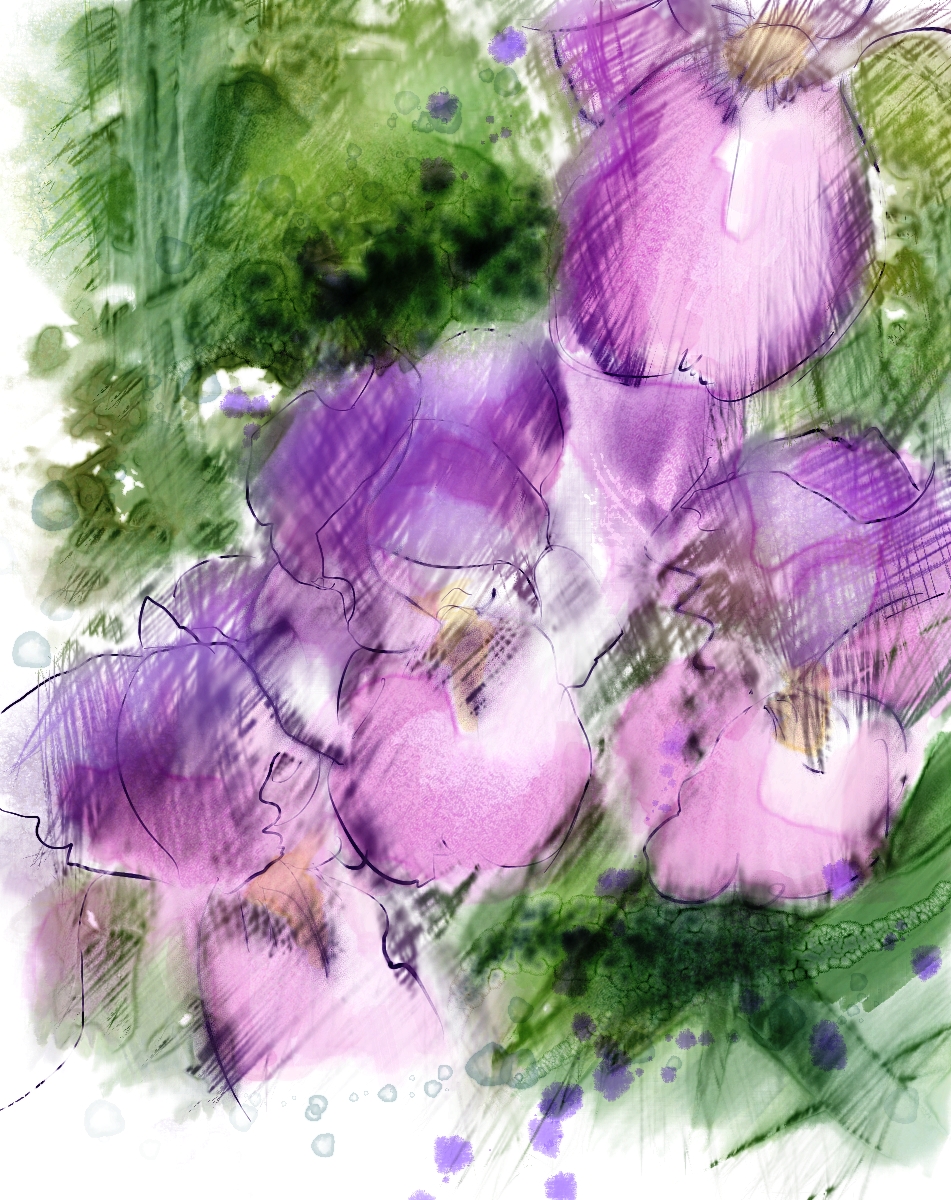
Image made with variants created in The Basics of Brush Making in Painter 12

Available again this session is my Basics of Brush Making in Painter 12. This class takes the mystique out of brush making in Painter 12.  It is a basic course and doesn’t cover everything, but the student develops a firm foundation for brush making. There are optional live sessions planned as well; I know you will enjoy those.  I plan to have Part 2 available for session 2.  I wanted to have it ready for this session, but my new computer arrives this week and will occupy most of my free time. 


Art Rage

All Undone, Image from ArtRage Pro 3.5

Corel Master Painter Karen Bonaker’s class, ArtRage-Brush Course-Watercolor and What’s New in ArtRage 3.5, updated to include the new 3.5 version strikes my fancy.  If you love ArtRage and watercolors, don’t miss this course.  Karen is one of the best teachers around and is so very creative in all that she does.  The class includes weekly live sessions as well as videos.  How to paint, how to make watercolor brushes, and what’s new in ArtRage 3.5 are covered in the course. You need ArtRage Studio Pro version 3.5 to take this class. 

I think that about covers it.  Do check out the details of course offerings at DAA.

Hope to see you in a class,

Skip

Gold in Painter 12 with Free Gold and Gold Leaf Plus Brushes

Hello Everyone,

Are you ready for Gold Leaf variants in Painter?  Do you know how to turn objects and letters into gold?  Read on, you are in for a treat.

Edit: 12/21/2011  Corel Master Painter Karen Bonaker posted about gold on Karen Bonaker Art, and she gave some beautiful examples of how the gold can work on images. Don’t delay and go visit her blog; it is wonderful. I love her work. I am especially taken with her sumi-e bamboo with added gold leaf. Then return here and enjoy my take on this technique that Karen developed. 

We just finished Holiday Open Studio at the Digital Art Academy, and it was a blast.  The first week Master Painter Karen Bonaker taught us useful techniques for making flower paintings.  She gave us some very fine brushes, too.  I taught the second week.  The subject was snow landscapes in watercolor; we used the new brush sets, Cool Spring and Drips and Runs.  Elaina Moore-Kelly showed wonderful Holiday Card techniques in the third week.  But the fourth week really caught my attention.

In the fourth week Master Painter Karen Bonaker came back to teach how to paint Holiday Wreaths.  A few days before, she showed me a technique she was going to use that she called adding gold leaf.  Her demo fascinated me.  She even used one of the Bristly Dab variants to create the brush that she used for gold leaf.  My mind filled with possibilities and I was off and running to make some Gold Brush Variants. 

They are surprisingly easy to make.  I quickly made a few and posted them for the participants in Holiday Open Studio.  My friend and brush mentor, Master Brush Maker David Gell, graciously took the brushes and made them backward compatible for Painter IX and above.  But that is not all; he added a number of gold variants of his own.  And they are so super!!!  Thank you David for all that you do for us.

David gave me permission to post his brushes along with mine for you to download.  I know you will have fun with them.

The variants use Window > Brush Control Panels > Color Variability Panel command “From Gradient,” but I am getting ahead of myself.  I have a video for you.  Enjoy!

Hope you enjoyed the video and like what you saw.  Since the brushes use “From Gradient,” I decided to do two videos about making gradients in Painter.  This first video shows you how to capture a gradient.  It is very easy.  Enjoy!

There is a second method for making gradients called “Edit Gradient.”  I demonstrated using the Two Point gradient, but you could edit any default gradient.  Enjoy!

The final video explains how to turn text into gold or any object for that matter.  To do it, you need a “Reflection Map.”  Don’t let that strange-sounding name throw you.  I’ll explain all about it in the video.  Oh, OK, it is just another term for clone. You’ll see.  Enjoy!

OK, that’s it for the videos.  I will provide a download link for the brushes and reflection maps at the end of this post.  But I promised Painter 11 and X users I would explain how to delete a gradient.  Here goes:

  1. Open the Gradient Palette, Window > Library Palettes > Gradients.
  2. Click on the Options Button or Fly Out Menu and select Gradient Mover.
  3. When the Grad Mover opens, you can select any gradient and hit delete. 

I think that is it for the tutorials; now for the download.  This link will give you the Gold and Gold Leaf Plus brushes and Reflection Maps.  I hope you enjoy them.

Gold Stuff Download

Just to give you an idea of how these brushes work and what you can do with them.  I took an old watercolor painting and added gold lettering and gold leaf.  It isn’t all that successful, but it does illustrate the point.  And it is my way of saying to each of you, have the Happiest of Holidays!!!

An Old Watercolor done in Painter 11 and embellished with Gold in Painter 12

 “Am I going to get a present?”

“Good grief Kevin.  You have been so quiet I almost forgot about you.”

“Yes, I am being so good, so I get a present, right?” he squealed in his high pitch computer virus voice.  The sound is so annoying.

“Why would viruses get a present…Santa Claus doesn’t like viruses.”

“But you are Santa Claus!  I’ve seen the picture!”

I was beginning to get miffed.  It doesn’t take much with Kevin.  “I am not Santa Claus, but I did get you a present.”

“Go on, you did, really?  Is it a really, really big present?  That is what I want a really, really big present.”

“I don’t know if you would describe a new home as a really big present, but that is what I got you.”

“You are sending me away?  Please don’t send me away.  I am a very good virus.”

“No Kevin, I am not sending you away.  I told you I was going to buy a new computer and I bought it yesterday.”

“But you said you were not going to let me live in the new computer.”

“I know, I know.  I guess it is the Holiday Spirit getting to me, but I decided you can stay.  The computer doesn’t arrive until Jan 6th, so you better stay good until then…or I’ll revoke my decision,” I sternly warned.  It isn’t good to let him think he is home free.

“Yippee!  I am the happiest of viruses!  What did you get?  Is it fast?  Will I be able to zip around and up and down?”

“I think you will like it.  I got an Alienware Aurora with ALX Chassis.  The basic specs are:

  • Processor: Intel Core i7-3960X (Six Core Extreme, 15MB Cashe) Overclocked up to 4.2Ghz
  • Memory: 16GB Quad Channel DDR3 at 16  MHz
  • Hard Drive: 2TB Raid 1+0 (4x 1TB SATA 3Gb/s) 7200 RPM
  • Video Card: Dual 2GB GDDR5 AMD Radeon HD 6950 – AMD CrossFireX Enabled

What do you think about that?”

He purred, “I think it is dreamy.  Are we going to play games?”

“I am, but you are not.  Don’t get pushy on me.  You are getting a bigger room and your own bathroom, so count your blessings.”

“I don’t see why you get to play and I don’t.”

“Oh good grief, Kevin.  Let’s call it a wrap.”

Happy Holidays,

Skip

The Power of Selections in Corel Painter 12 And a Precursor to My Next Cloning Video

Hello Everyone,

I am still planning another video on cloning that will be a bit more complex than the cloning techniques with the Cardinal in an earlier post.  I will use selections, channels, and layer masks in the technique.  I thought it is best to cover those topics before we get to the cloning to make sure we are all on the same page.  I am not covering selections  in the cloning process; I will do that in the cloning video.  I designed these video tutorials to give you an understanding of selections in general.

The first video is about basic selections, which most of you will already know.  You can skip it if you like, unless of course, you are new to Painter, then I would suggest you watch it.

The next video covers a topic that is new for a lot of you.  Auto Select is a very powerful selection tool and allows you to select things like Paper Texture or Image Luminance.  It is a very cool feature; I am sure you will want to check it out.

Third video may also be new for you.  It is about Color Select, which allows you to select a range of colors.  Again, this is very cool stuff.

I wasn’t sure I wanted to add the last video using Auto Select with Off Set Sampling, but decided to include it.  Using Off Set Sampling is the only way I know to use certain parts of Auto Select.  Combining the two features is amazing.  It seems complex at first, but once you get used to setting it up, the features are very useful.

OK…that’s it for this post.  As always, please feel free to post a comment and I will try to answer any questions you may have.  Don’t forget, if you want notification via email when I make a post, be sure to become a subscriber.

Enjoy,

Skip

Making Fractal Pattern Papers with Corel Master Painter Karen Bonaker

Hello Friends,

Corel Master Painter Karen Bonaker has posted her second post in her series about making paper.  This one is all about making a fractal pattern and then capturing as a paper.  These types of papers make great papers to show case the runny aspects of watercolor.  She has some beautiful examples of using them in a number of ways.  Here is one example:

Corel Master Painter Karen Bonaker's Example of a Special Paper Texture

I love that painting; great way to show rain.  Go visit Karen’s Blog right away.  Creating Fractal Pattern Paper Textures

Enjoy,

Skip

Making Paper in Corel Painter 12 with Karen Bonaker

Hello Friends,

Karen Bonaker at Karen Bonaker Art is providing a series of video tutorials about paper.  It will be comprehensive and free…sounds great right.  I’m sure it is.  She mentions that she will be demonstrating papers that will go with Cool Spring and Drips and Runs Categories.  So head on over to Karen Bonaker Art and check it out.  You will be glad that you did.

Enjoy,

Skip

Watercolor Clone in Painter 12 Done Simply

Hello Everyone,

Several students and blog followers asked me to do a video tutorial on cloning in Painter 12.  Cloning isn’t a simple subject.  But before I get started, don’t forget that Holiday Open Studio starts Saturday 11/19/2011 at the Digital Art Academy.  This is one of the most fun classes at DAA.  You can use Painter X, 11 or 12.  It is for beginners and experts alike.  Please click on this link and check out Open Holiday Studio.

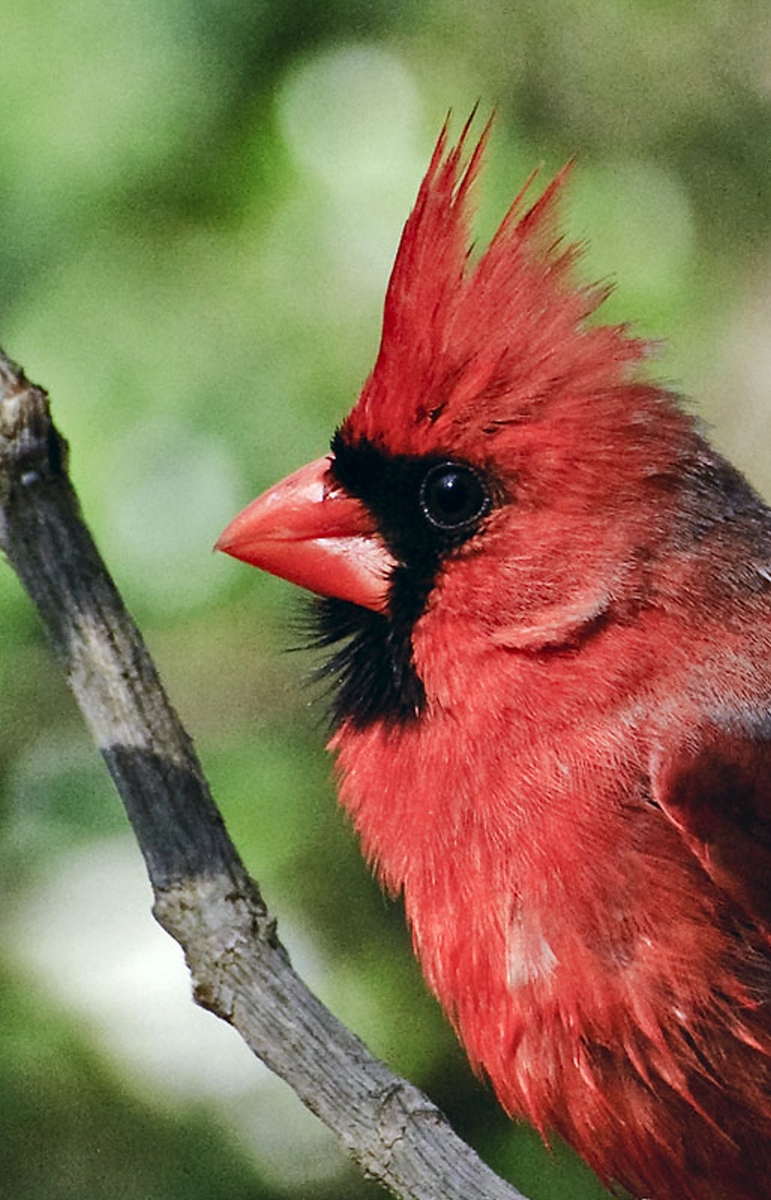
Cloning has many options and the results do not have to look photographic; the term creative cloning is alive and well, at least it is on this blog. 🙂  My plan is to do a series of cloned paintings, starting with this one of a cardinal that uses a very simple approach to cloning.  How many will be in the series? I don’t know, but at least one more.  Each will be a bit more complicated than the previous.

In this tutorial, I am going to use this photograph I snapped of a cardinal sitting outside a window in my computer room:

Cardinal

In the videos you will see me create this clone of the cardinal.  You will see everything I do in about 50 minutes; I decided not to do any speed painting.

Cardinal

In the first video I create the background with clone color and very wet watercolor variants.

In the second video I begin to clone paint the subject.

As usually happens, I messed up stuff in the third video.  I decided to leave it and show you how I fixed my problems.

The final video completes the image; I hope you like it.

Well, that is it.  What do you think?

“I think it is pitiful.”

“I’m not asking you Kevin.  Of course you think it is pitiful; you are so negative.”

“I’m far from negative.  Don’t forget I am a good virus, and I am optimistic, too, except….  I better not say.  I want to stay positive and upbeat.”

I can tell that he is baiting me.  He wants me to argue, but not this time.  “You are right.  You are so positive and upbeat as all good viruses are.  I am so lucky to have you staying on my computer.”

“Aha!  You lie.  You don’t believe what you said.” he was almost screaming.

“I do believe you are positive and upbeat all the time.  I am glad that you are, too.  I am in the market for a new computer, and when I buy it, I will retire this computer.  How about that.  I’ll plan a retirement party,” I tried not to chuckle.

“You are buying a new computer?  Well, no problem, if you transfer anything from this computer to the new computer I’ll tag along.”

“Awe, I’m sorry.  I have already downloaded what I need for the new computer.  I guess you didn’t notice when I was doing it.”

“I thought you were doing a back up.  Surely you will not leave me alone on this computer.  After all I have done for you; surely you will take me with you.”

Well folks, that’s all I have today.  I hope you enjoy the videos.

Skip

Registration for Holiday Open Studio at DAA is Open; Join Us for a Fun Filled Month Working with Corel Painter

Hello Everyone,

Corel Painter Master, Karen Bonaker, announced the opening of registration for Holiday Open Studio at Digital Art Academy (DAA) at Karen Bonaker Art, her wonderful blog. Do go by and take a look at the information  and syllabus for this 4 week course.  Holiday Open Studio is for anyone, beginner and expert a like.  Each week there is a new leader with a special topic.  Class begins 11/19/2011 and ends 12/16/2011.

The first week, Karen shows how to create and paint a perfectly balanced Holiday flower arrangement.  Take a look at this image, which can also be seen at her blog.

Lovely painting by Corel Master Painter, Karen Bonaker. Learn how she does it in Holiday Open Studio 2011

I have the second week.  Learning to leave white space in a watercolor is difficult.  I am focusing on snow scene landscapes with lots of white space.

Simple snow scene landscape done in Painter 12

Corel Painter Educator and Expert, Elaina Moore-Kelly, has the third week.  Elaina wows everyone with her beautiful Holiday Greeting Cards.  Discover her secrets for Corel Painter as she demos greeting cards.

Examples of Elaina Moore-Kelly Greeting Cards; Done in Painter 12

Karen returns for the fourth week.  Holiday Wreaths and winter scenes are the topic.  She has prepared a custom set of brushes for this workshop, which each student will receive.  I think Karen’s work is stunning.  What do you think?

Corel Master Painter, Karen Bonaker's Holiday Wreath.

That’s about it.  Do go by and check out Karen Bonaker Art and view her video from Holiday Open Studio 2010; you will be glad that you did.

Enjoy,

Skip

Pressure Sensitivity with Cool Spring for Painter 12

Hello Everyone,

I have heard from some folks that they cannot get the same sort of marks with Cool Spring and Bristly Dab variants that I can get.  I think I know why.  Pressure sensitivity is the key.  A Wacom Intuos 4, fabulous machine, is able to use 2048 levels of pressure.  That’s a wow in anyone’s book.  But, are we using all 2048 levels; I’m not sure, but I surely want to try.  And if I want to get any kind of decent marks with these variants, I must apply paint very sensitively.

“Ha, you sensitive? Never going to happen!”

“Awe, Kevin, you promised you wouldn’t bother me any more while I am making posts.”

“And you promised to feed me better, but all I get is bugs!  I know you like a bug free machine, but making me eat them is plain mean,” he whimpered in his best hurt voice.

“I thought you liked bugs.  Aren’t they nutritious and tasty?”

“I would like to remind you that good viruses eat memory, not bugs.  Making a good virus eat bugs is comparable to your dog eating the neighbor cat’s pooh!”

“Alright, that is enough…get in the closet…NOW!”

Sorry about that, now where was I?  Oh yes, pressure sensitivity is the key to making good marks with Cool Spring.  I did a quick video while making the following sky.

Sky created in Painter 12 using Cool Spring variants. See Video

I hope the video shows pressure sensitivity when using Cool Spring as well as Bristly Dabs is crucial.  It is very important to play with your brush tracking settings.  But, more importantly, practice making strokes.  Practice, Practice, Practice is key.

Please feel free to comment, ask questions, or console Kevin.

Enjoy,

skip

Free Corel Painter 12 Brushes; Cool Spring

Hello Everyone,

I finally got the Corel Painter 12 watercolor brushes finished and named them Cool Spring.  I hope you like them.  I would suggest installing these variants in their own library; like all watercolor brushes they are a bit slow, but putting them in their own library helps.  Don’t forget that my Basic Watercolor with Painter 12 and Basic Brush Making with Painter 12 start on Oct 22.  Come join the classes; I promise we will play a lot. 🙂

I produced two videos showing a bit about the variants.  In Part 1, I did the following image using 2 very wet brushes and about 8 stokes.  It is great fun to watch the paint bleed into the paper and create beautiful blends.

From Part 1 Cool Spring

Beginning image created with 2 very wet variants and about 8 stokes. See Part 1 Cool Spring video.

Let me know what you think of the brushes.  I’m always open to suggestions.

Cool Sping Download

Enjoy,

Skip

Tim Shelbourne Demonstrates Bristly Dabs

Hello Everyone,

I have a special treat for all of you.  I hope those who have visited will come back for this new video from Tim Shelbourne, the creative genius behind  The Artist Quarter.  I am a big fan of Tim, the way he paints, and most of all his method of teaching.  He approaches everything from a traditional artist standpoint, even though he has painted digitally for many years.  I am a subscriber of The Artist Quarter and highly recommend it for everyone.  Tim is at home with Photoshop as well as with Painter 12.  He has a very unique way of cloning in Photoshop CS5 that I have not seen anywhere.

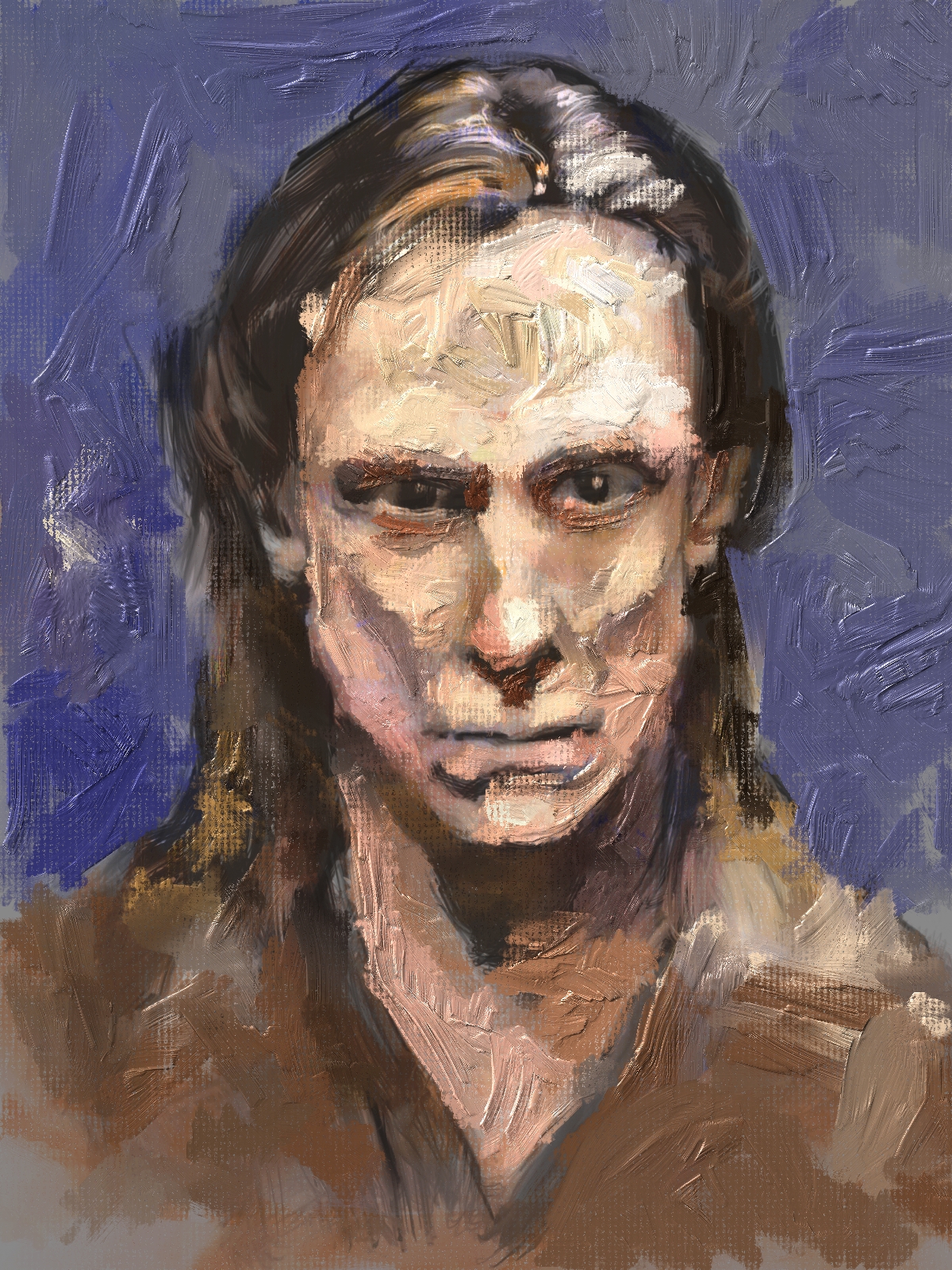
Check out his impasto sketch that he did with the Bristly Dabs in Painter 12.  And then for a real treat, watch the video and see him talk about how he is using them.  He is a bit gushy about the brushes; I turned red, but I can’t tell you how pleased I am that someone with his painting skills likes the new variants.  And, he is going to show you some nice tricks with Painter 12.  Tim, my friend, thank you so much for sending this video.

Before I go to the image and video, I wanted to mention something that Tim is doing that is very unique.  He is having online ateliers, French for workshop.  I have attended several and they are fantastic.  It is like having a workshop in person, but you don’t leave your house.  The workshop last for several days or weeks.  We have video materials, PDFs, and even special brushes to download.  On the first day we meet via Go To Meeting and Tim gives a live demonstration and takes questions.  Tim records the live demonstrations and makes them available for the attendees.  Then we meet several more times for live demonstrations and a chance to show our work to other participants and get live critiques.  I love these workshops.  Visit The Artist Quarter, you will be glad that you did.

Here is the quick impasto sketch that Tim demonstrates in the video:

Tim's Impasto Sketch done in Painter 12

Tim is all about teaching how to paint.  You will see in his video:

Tim, I want to thank you again for doing this video.  I think many folks will paint with these new variants thanks to your inspiration.

I hope y’all enjoyed this special treat, if you did let us know.

Skip